Everyday scenarios
How to use the Clipwell picker day to day.
The picker is a pre‑warmed window that appears the instant you press the hotkey. History loads a page at a time and fetches older items as you scroll, so even a very long history stays fast (the list is virtualized).
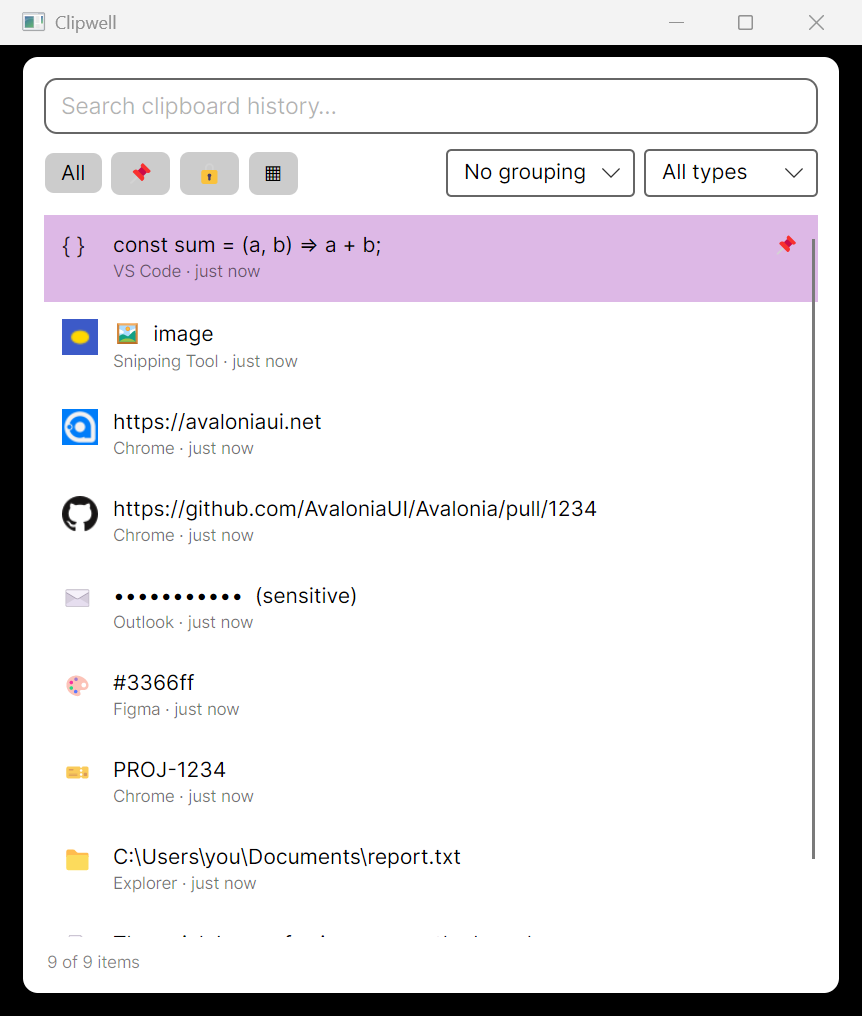
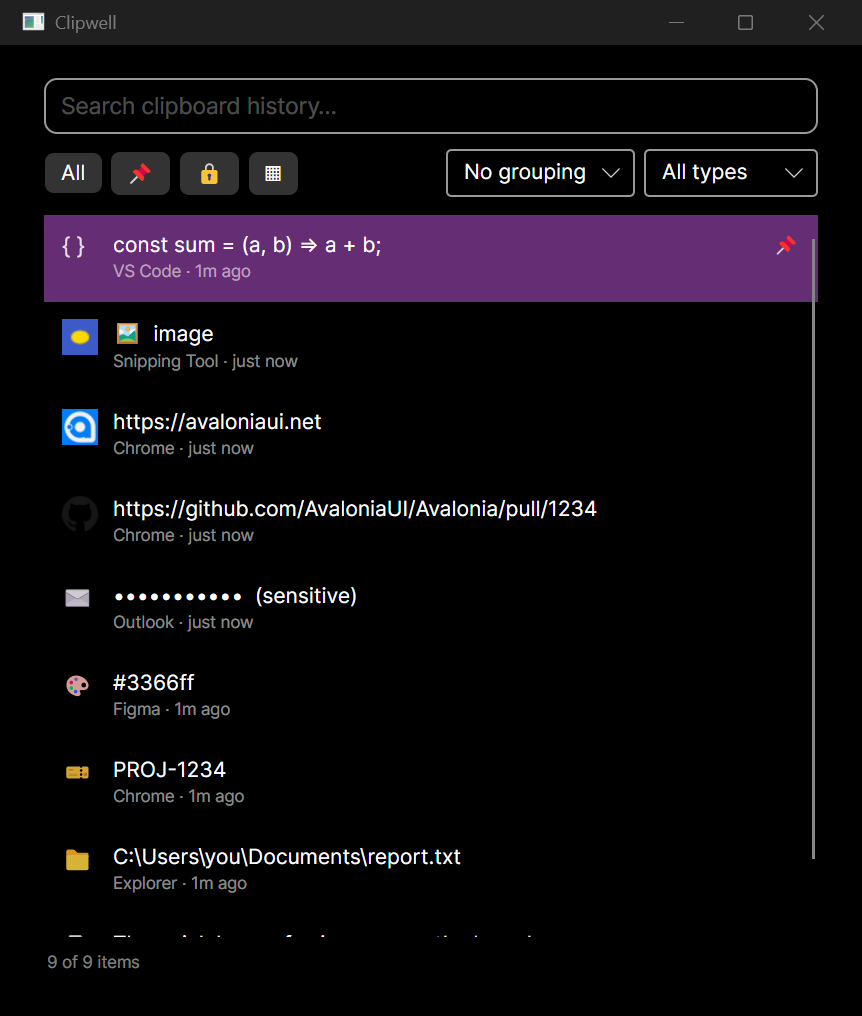
Find and paste something you copied earlier
- Press Alt+Shift+V. The picker appears centered, search box focused.
- Start typing to filter by content.
- Press Enter (or double‑click) to copy the item — Clipwell restores focus to the app you were in and pastes it there.
- Press Escape (or click away) to dismiss without pasting.
Clipwell remembers which window was focused when you opened the picker, so the paste lands back in the right place.
Recognize items at a glance
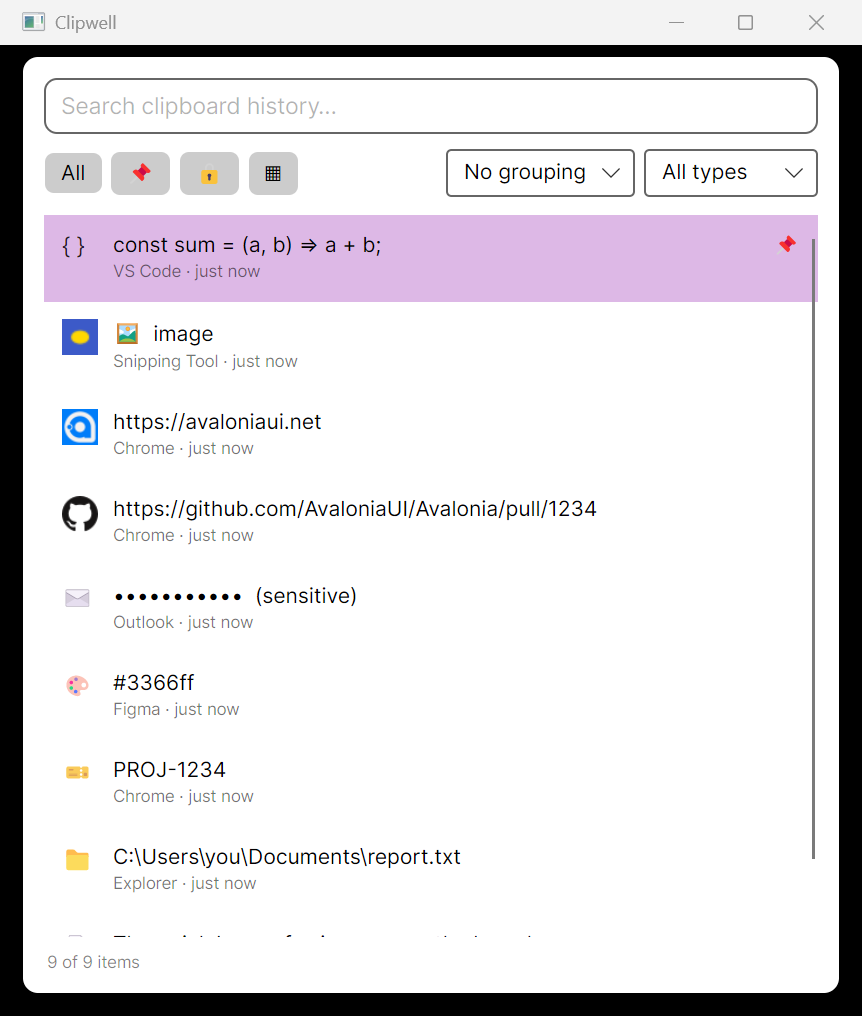
Every item is classified and shown with its kind's icon (Lucide, shared by the native picker and the web UI):
| Icon | Kind | Example |
|---|---|---|
| link | url | https://avaloniaui.net |
| git-pull-request | github-pr | https://github.com/org/repo/pull/123 |
| ticket | jira-issue | PROJ-1234 |
you@example.com | ||
| palette | color | #3366ff |
| folder | path | C:\Users\you\file.txt |
| code | code | const sum = (a, b) => a + b; |
| image | image | a screenshot |
| file-text | text | anything else |
Classification is done by pluggable detectors, so the set of kinds can be extended. Image items show a thumbnail, and URLs show the site's favicon (fetched directly over HTTPS — no third‑party favicon service) in place of the icon. Color items show an actual swatch of the color beside the value, and code, color, and path items render their preview in a monospace face.
The metadata line under each preview shows which app it was copied from, the relative time, the character count for text items, the pixel dimensions for images, and an edited tag when the text has been overridden ("VS Code · just now · 312 chars").
Search with highlighting
Typing in the search box filters the list live and marks every match in the previews (amber), so you can see why an item matched — in the text or in its alias. The filter pills and the type dropdown show live counts that follow the search: "Pinned 3" always answers "what do I see if I click this".
Compact and Detail views
Toggle between Compact (a dense single‑column list) and Detail (list on the left, a full preview pane on the right) with the view button next to the filter pills. The preview pane shows the selected item's kind, source, and full content — the complete text, or a full‑resolution image.
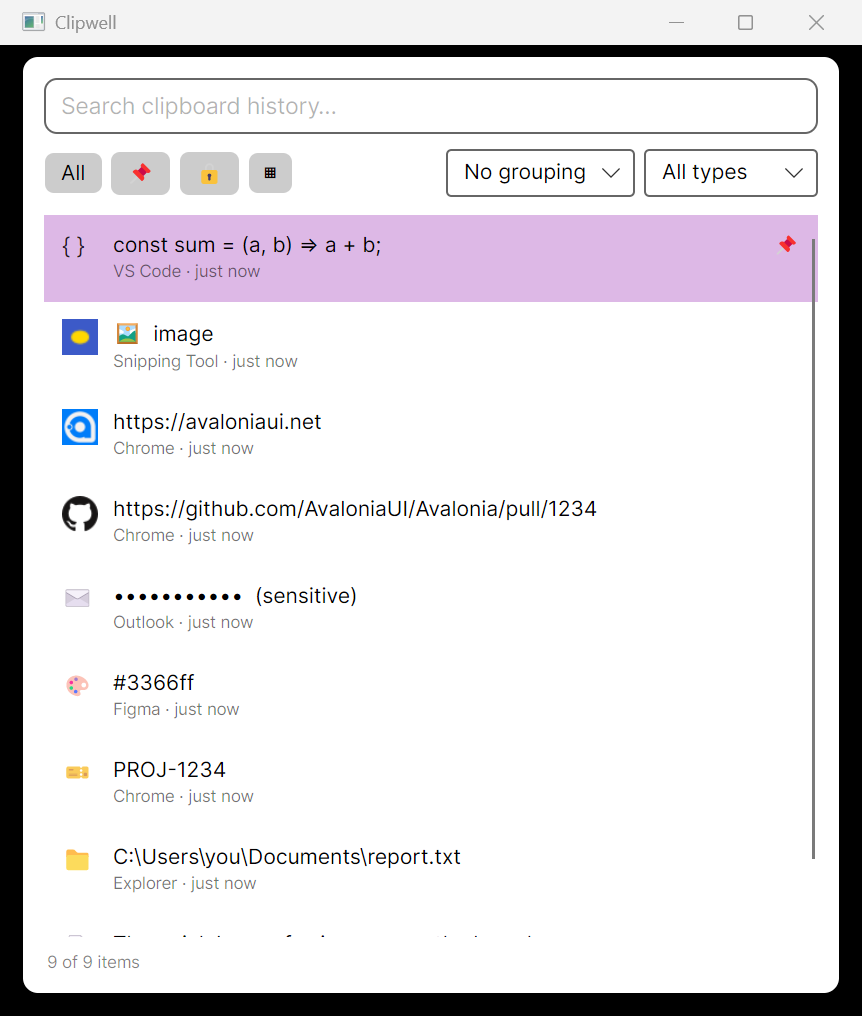
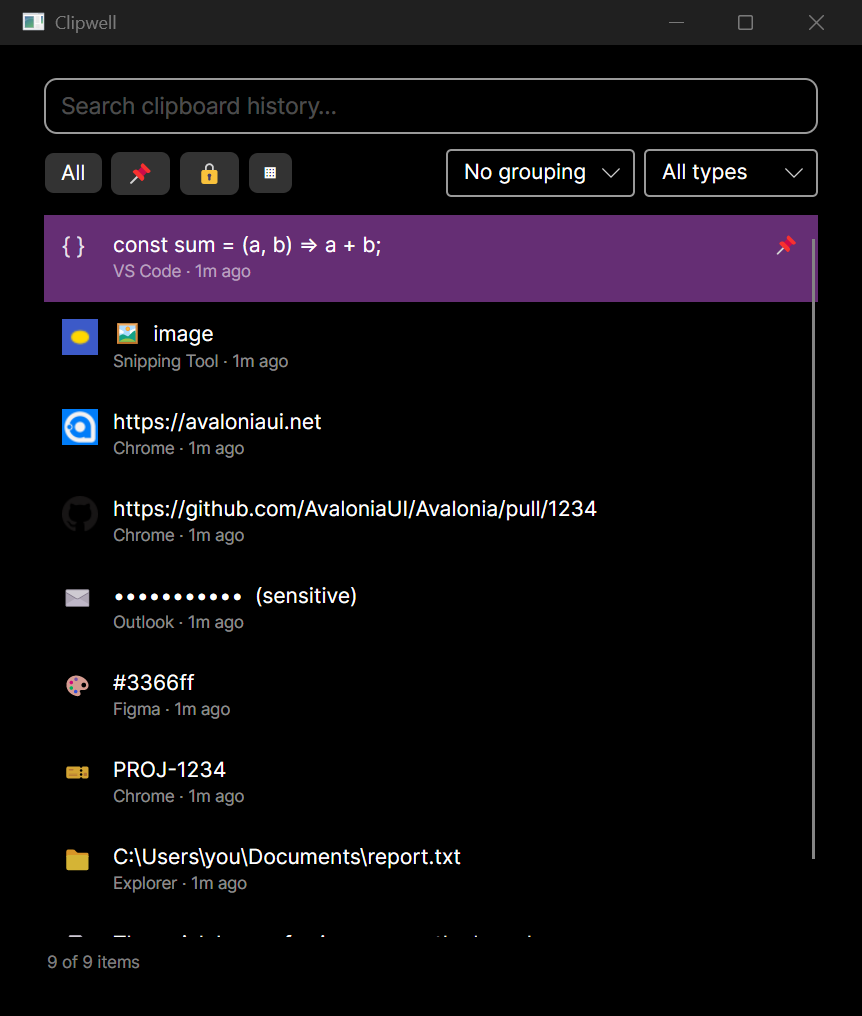
Peek without switching: hover & Quick Look
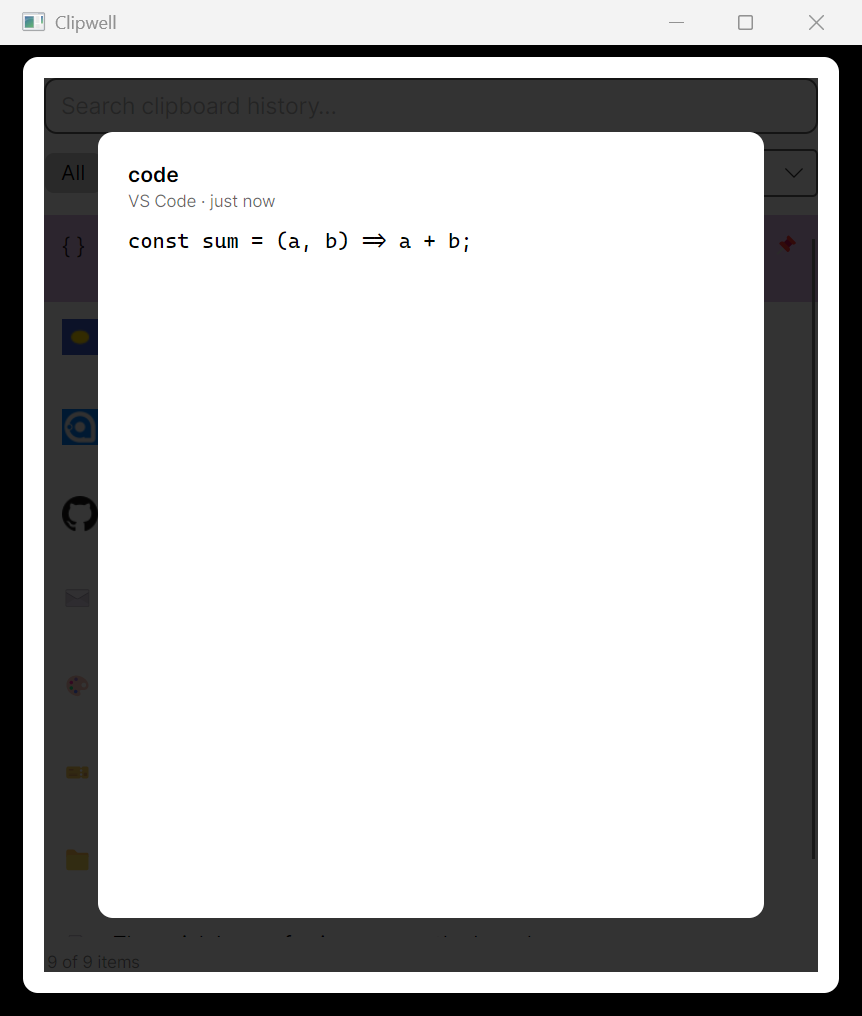
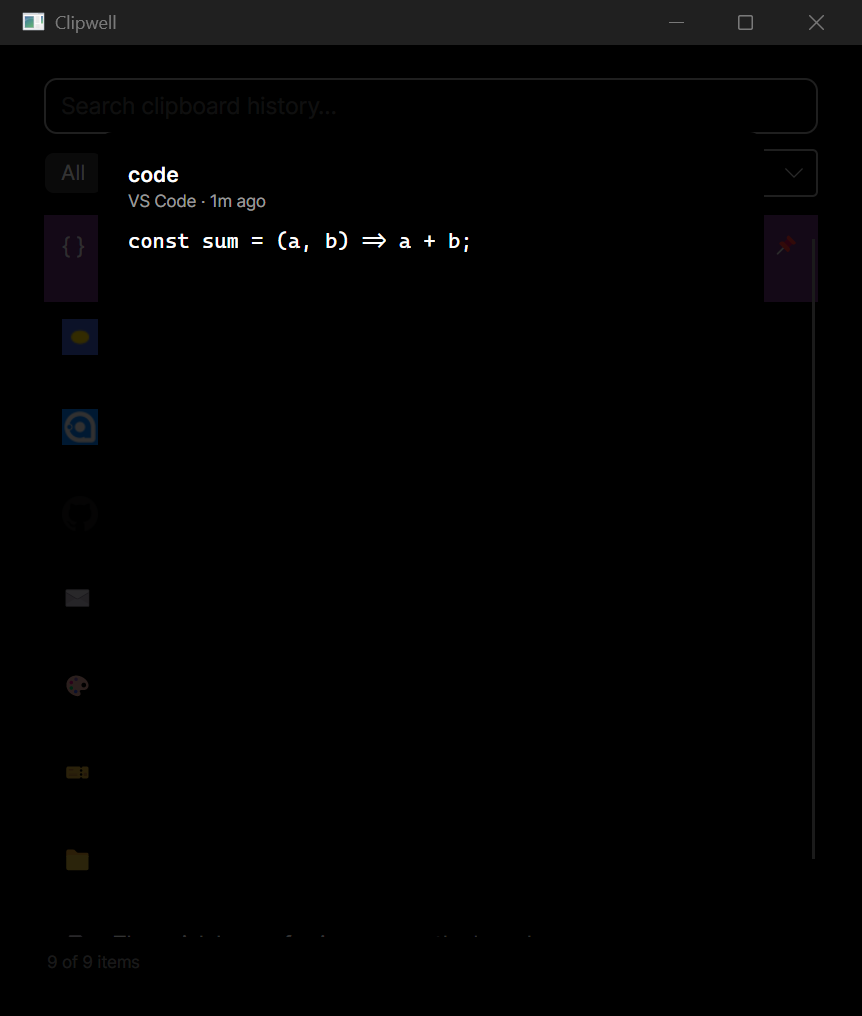
Hover any item to see its full content in a tooltip. For a bigger look, select an item and press Ctrl+Y for Quick Look — a full‑window overlay with the complete text (scrollable) or a full‑resolution image. Press Ctrl+Y again, Escape, or click the backdrop to close.
Run actions on an item (Ctrl+K)
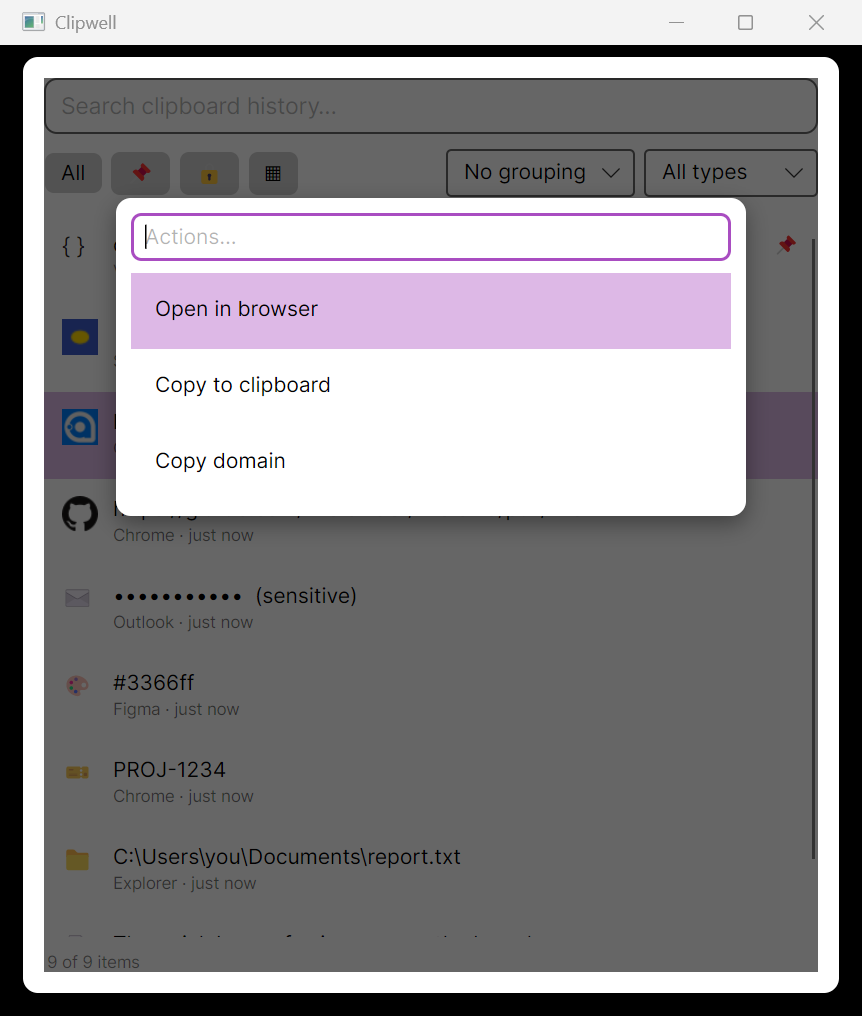
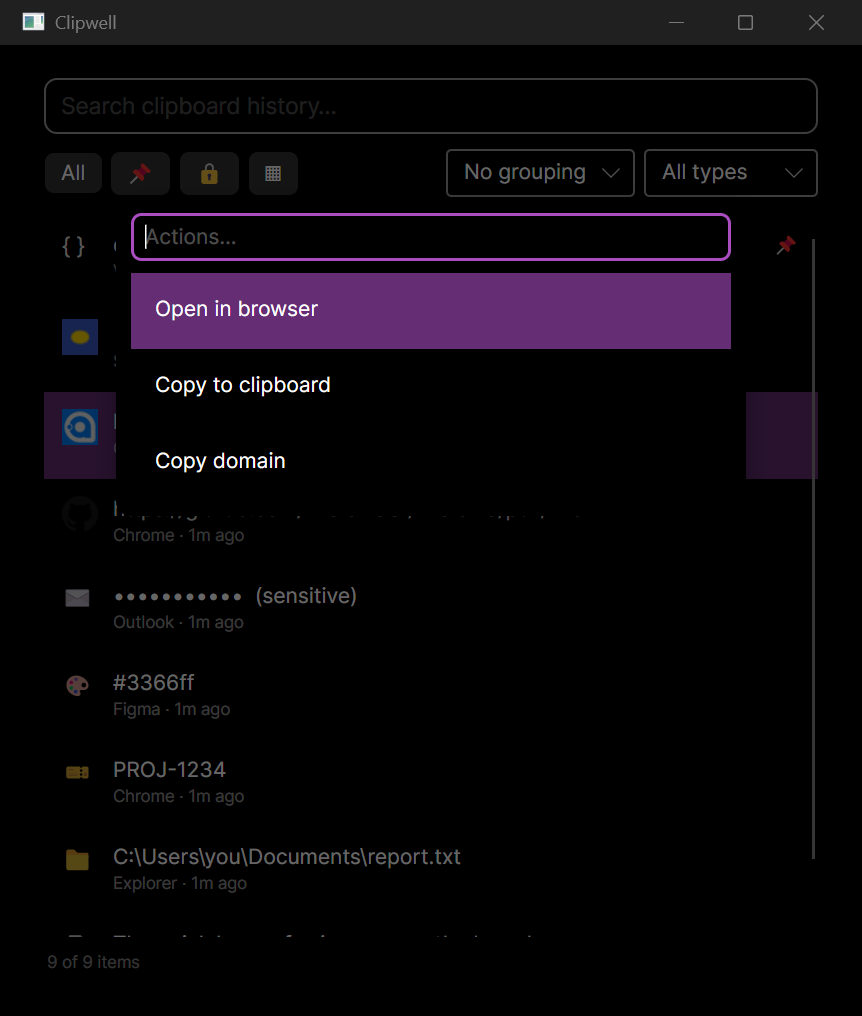
Press Ctrl+K to open the action palette for the selected item — a searchable list of the actions that apply to its kind. Built‑in actions include Open in browser and Copy domain for links, Open file or folder for paths, and Copy to clipboard for anything. The set is extensible: plugins add their own actions through the same contract (see the engineering docs).
Filter to what you need
The pills below the search box narrow the list instantly, each with a live count:
- All — everything, newest first (pinned items float to the top).
- Pinned (pin icon) — only items you've pinned for reuse.
- Sensitive (lock icon) — only items you've flagged as sensitive.
The type dropdown filters by detected kind (with per‑kind counts), and the grouping dropdown can group the list by date (Today / Yesterday / Previous 7 days / …) or by source app, with a header above each group.
Keyboard shortcuts work on the selected item:
| Chord | Action |
|---|---|
| Enter | Paste (keeps rich formatting where captured, Windows) |
| Alt+Shift+Enter | Paste as plain text |
| Ctrl+E | Edit content |
| Ctrl+Shift+L | Toggle the sensitive flag |
| Ctrl+P | Toggle pin |
| F2 | Rename (alias) |
| Ctrl+Y | Quick Look |
| Ctrl+K | Action palette |
| Ctrl+1 / 2 / 3 | All / Pinned / Sensitive |
| Delete | Remove the item |
Edit an item's text
Press Ctrl+E to edit the selected item's content in place — fix a typo in a snippet, trim a URL, redact a line. The edit is a non‑destructive override: the original capture is kept, the row shows an edited tag, and saving empty text restores the original. Edited text is re‑classified, so editing a note into a URL flips its kind (and favicon) too. Save with Ctrl+Enter, cancel with Escape.
When the daemon is down
If the picker can't reach the daemon it shows an error banner with a Retry button and keeps the last loaded history on screen instead of blanking. It also reconnects automatically — a restarted daemon clears the banner within a couple of seconds, no clicks needed.
Pin snippets you reuse
Pin the things you paste over and over — a sign‑off, a command, a code snippet. Select an item and press Ctrl+P (or use the Pinned pill to manage them). Pinned items are sorted to the top of the list and survive history retention sweeps.
Hide sensitive items
Flag an item as sensitive (Ctrl+Shift+L) and its preview is masked in the
list as •••••••••••, so a password or token doesn't sit in plain sight while you
scroll. Sensitive image items don't render a thumbnail.
Settings
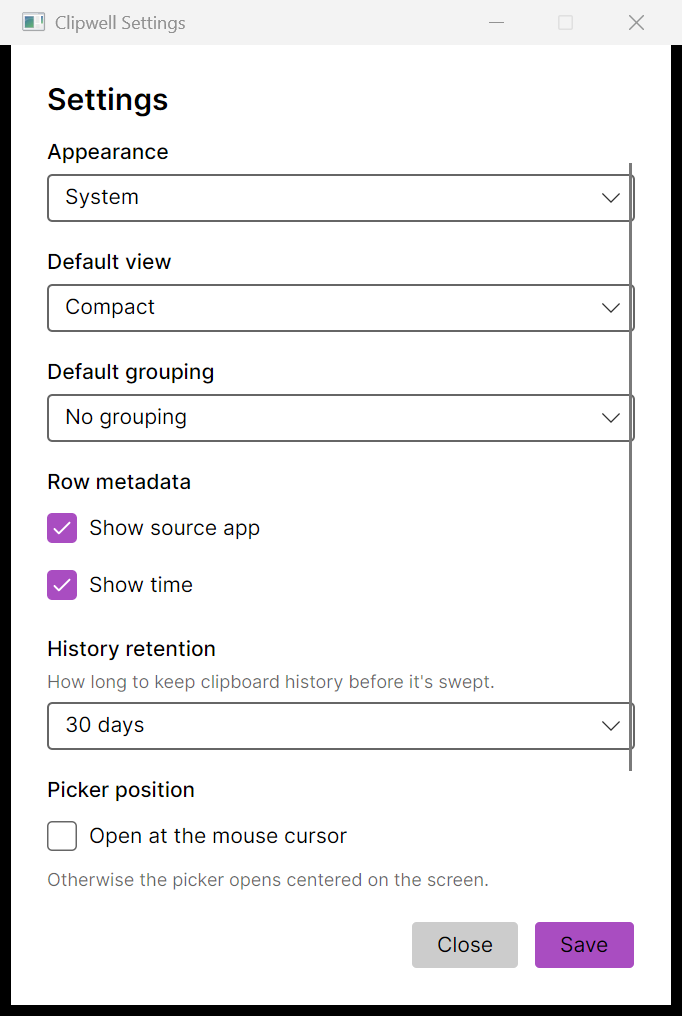
Open Settings… from the tray menu to tune:
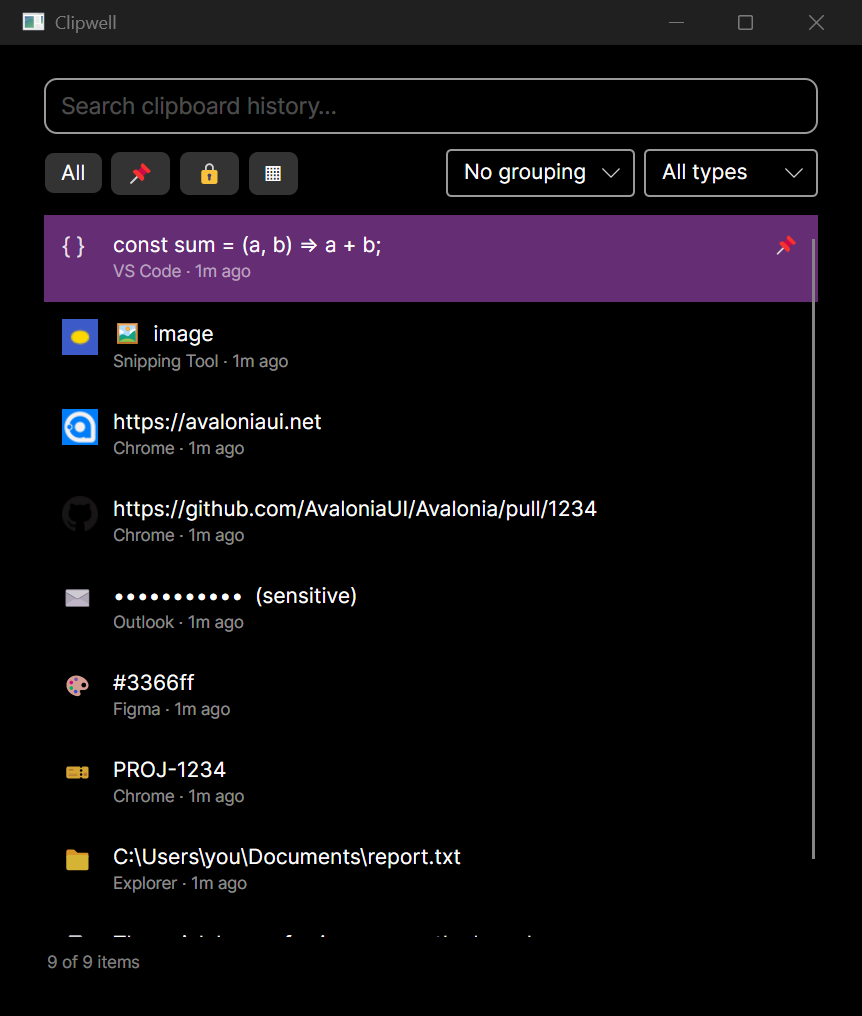
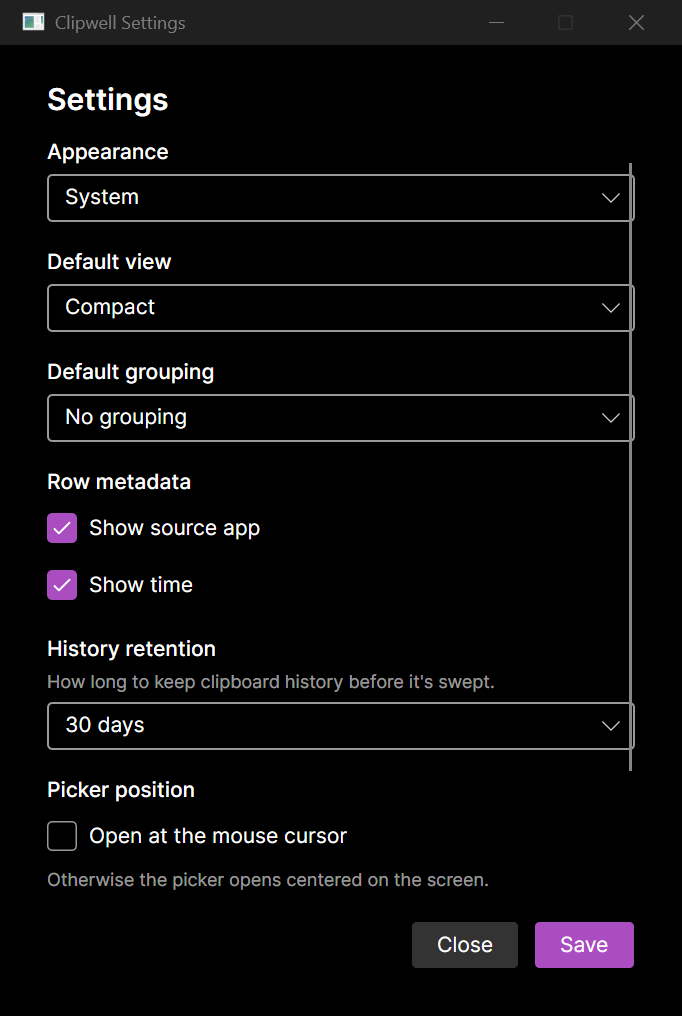
- Appearance — System (default), Light, or Dark theme.
- Default view — Compact or Detail.
- Default grouping — None, by date, or by source.
- Row metadata — show/hide the source app, time, and character count on each row.
- History retention — 7 / 30 / 90 days, or Forever.
- Picker position — open at the mouse cursor or centered.
- Global hotkey — rebindable: click Change… and press a new combo (default Alt+Shift+V). Applies live on Windows.
Check performance & daemon health
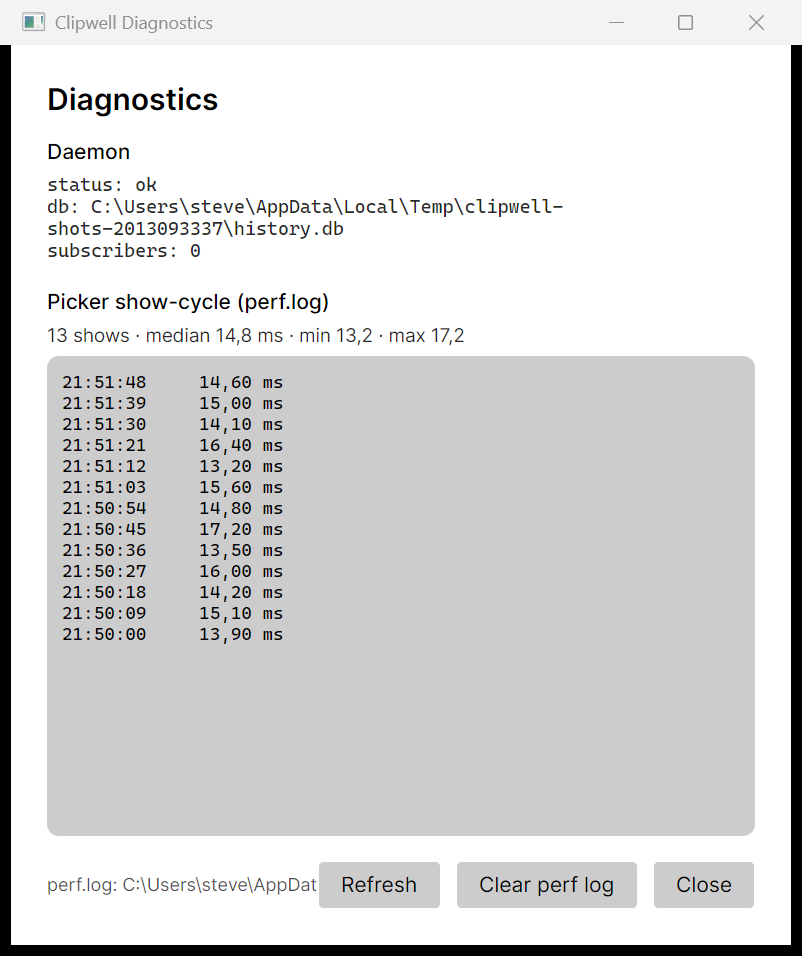
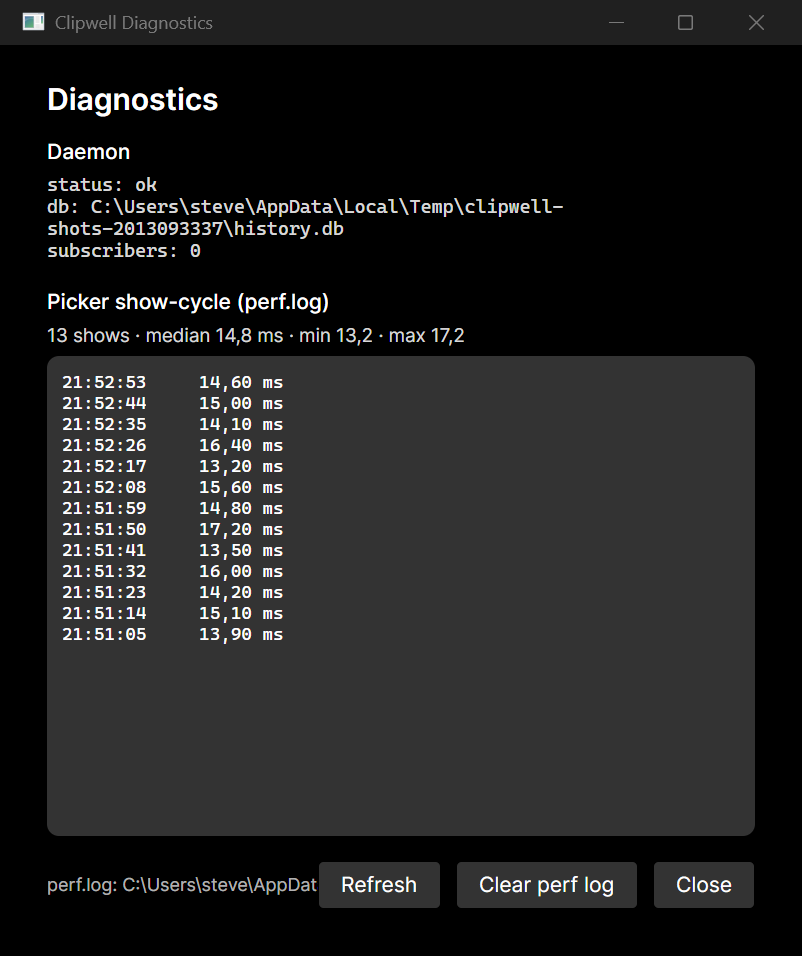
Open Diagnostics… from the tray menu to see the daemon status (and its database
path) and the picker's show-cycle timings from perf.log — count, median, min,
and max — so you can confirm the picker stays in its single‑digit / one‑frame range.
Clear the log or refresh from the same window.
Keep it running in the background
Clipwell lives in the system tray. Closing the picker window doesn't quit it — use the tray menu's Quit for that. Only one instance runs at a time.